Once you have created the documentation, there are a number of ways to allow others to update it.
Note
As part of best practice guidelines, it is recommended to use a version control system for tracking commits to your code and host your code on a online version control service such as github. The following assumes you are following these best practice guidelines.
Important
See the best practices guide for more information on the how to contribute software projects.
You can directly edit existing documentation online, for example on github. This approach allows you to contribute changes using only a web browser.
Navigate to the repository of interest.
If the repository does not belong to you, fork the repository, (part of the best practice guidelines). You can do this by clicking on the fork icon on the top right of the repository. This will create a copy of the repository on your github account.
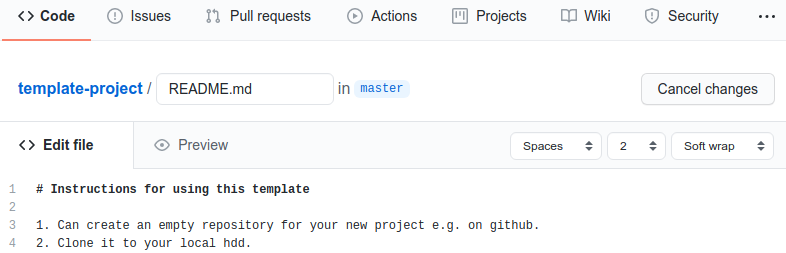
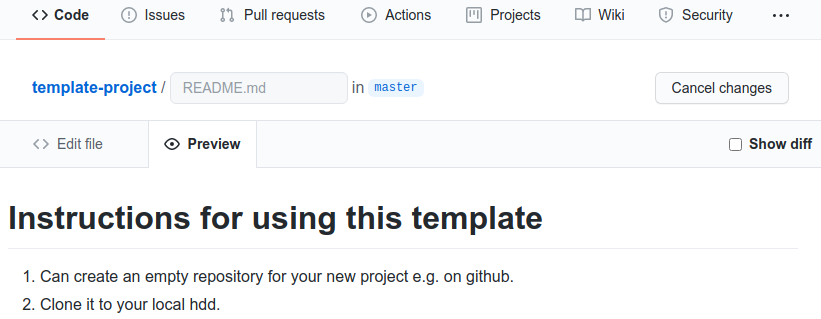
In the project, select the file that you wish to edit (e.g. a file ending with .md (Markdown) or .rst (reST)). The rendered preview of the file will appear.
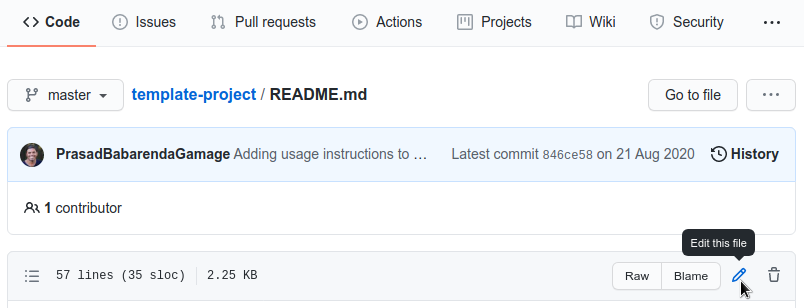
Click on the pencil button as shown in the screenshot below to edit the file.
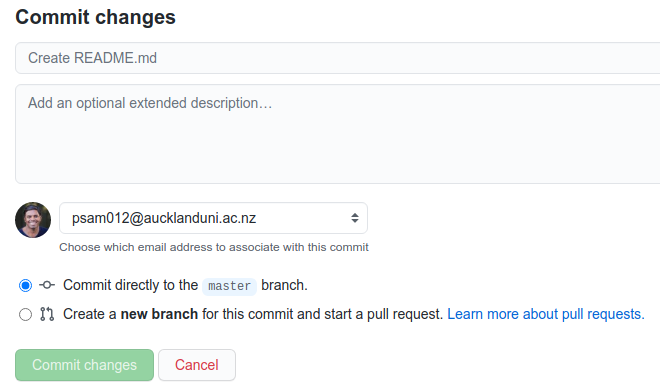
Decide whether you want to commit directly to the master branch or make the commit to a new branch and start a pull request (best practice guidelines recommend the latter option.
Create a pull request from your fork to the main repository. This will allow the owner of the main repository to review your changes and determine whether it can be contributed back into the main repository.
Important
See the best practices guide for more information on the how to contribute software projects.
Alternatively, you can create a local copy of the project on your computer (forking and cloning the code). You can then edit the source code as desired using your IDE of choice (e.g. PyCharm). You can then follow the best practice guidelines to commit and contribute your code into the project’s main repository through a pull request.
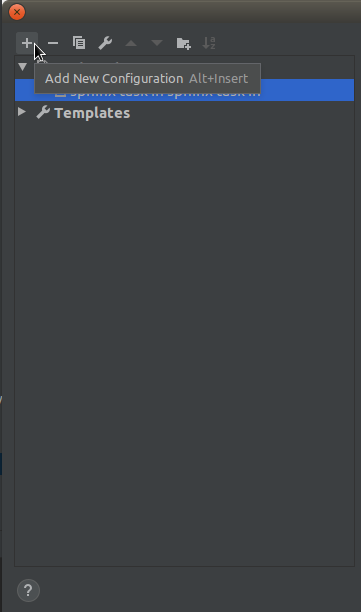
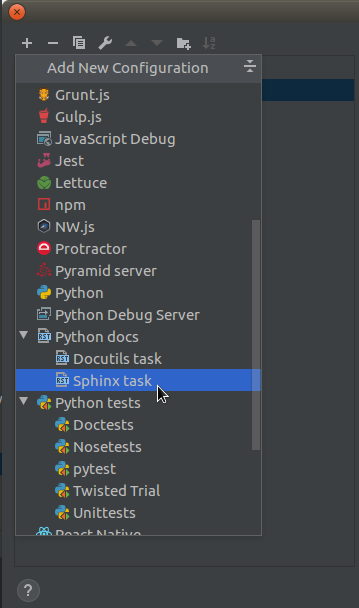
Complete the following fields in the configuration task:
Name: Sphinxtask
Input: Select the source directory in the documentation folder (typically, the docs/source folder).
Output: Select the build directory in the documentation folder (typically, the docs/build folder, if this does not exist copy paste the path you have specified for the Input above, and replace source with build).
Python interpreter: Select your python interpreter.
Options: -E-a (This options forces rebuild of html).
You can now run the configuration by pressing the green play button.
Once you have finished editing the documentation you can commit your changes to your fork of the repository e.g. using Gitkraken, and create a pull request to notify the developers of the main repository that you have changes ready to be pulled into the main repository.
See also
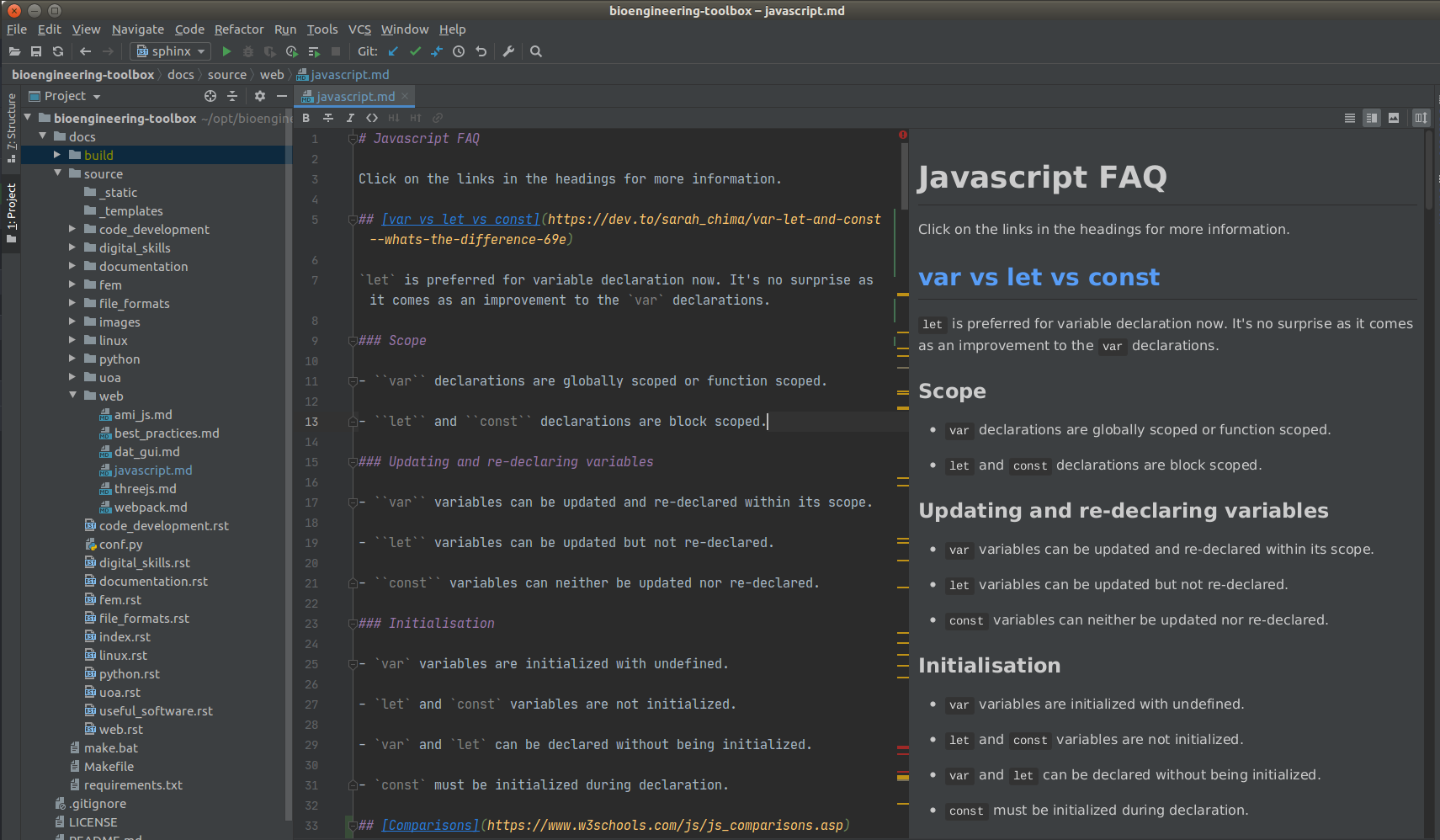
Note that Python provides a markdown plugin that allows for dynamic previewing of markdown files as shown in the figure below:
On occasion, a bug in the extension results very high CPU usage, slowing down the performance of PyCharm. To address this issue, you need to close any open Markdown files and restart PyCharm. Alternatively, you can disable the Markdown plugin.